
SLASH for Slack
Connect SLASH to Slack for real-time security notifications
Add SLASH to Your Slack Workspace
To install the SLASH app in your Slack workspace, you need to access the integration from within your SLASH account. The "Add to Slack" button is located in the SLASH dashboard, which requires you to log in first.
Installation Instructions:
- Log in to your SLASH account at slash.securitywall.co
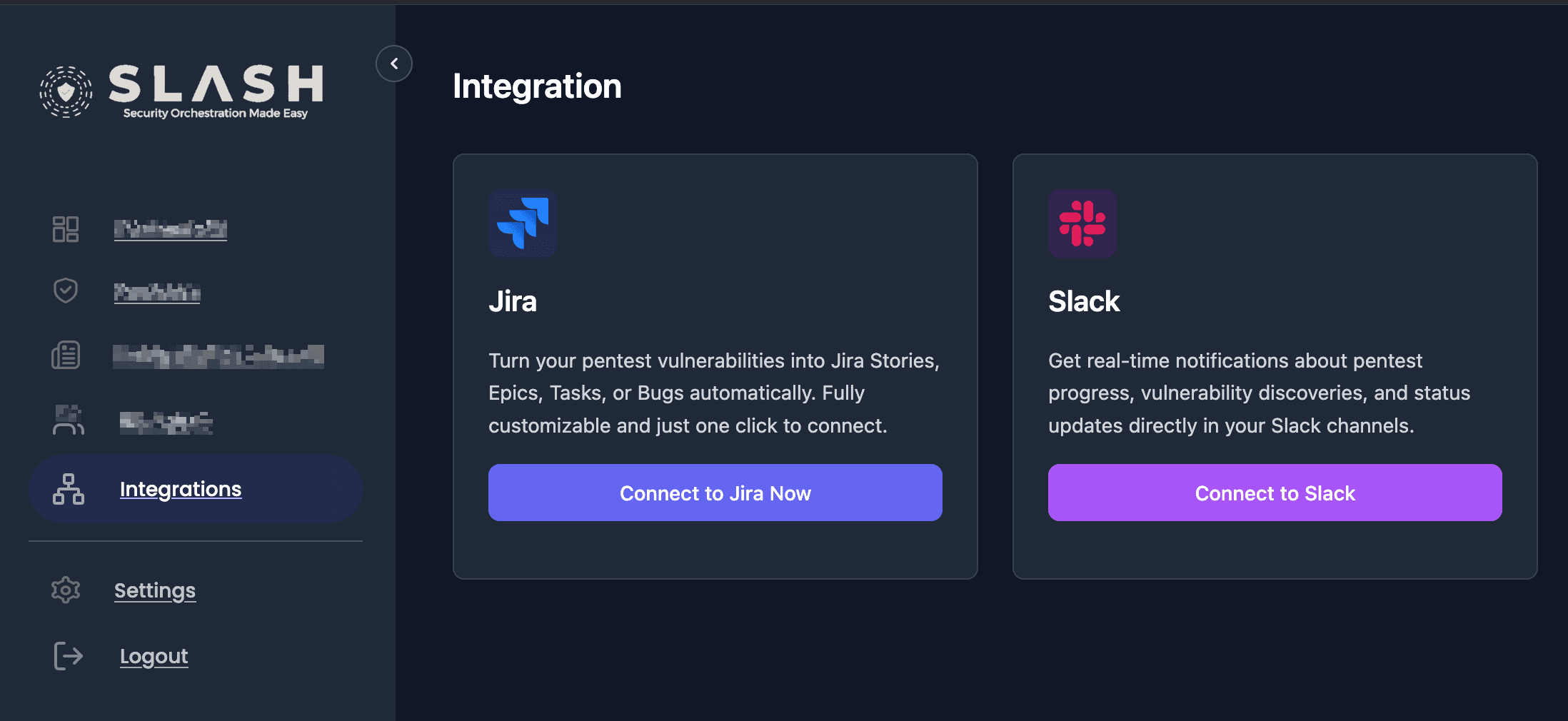
- Navigate to the Integrations page from the left sidebar navigation
- Find the integration for Slack card
- Click the "Connect to Slack" button
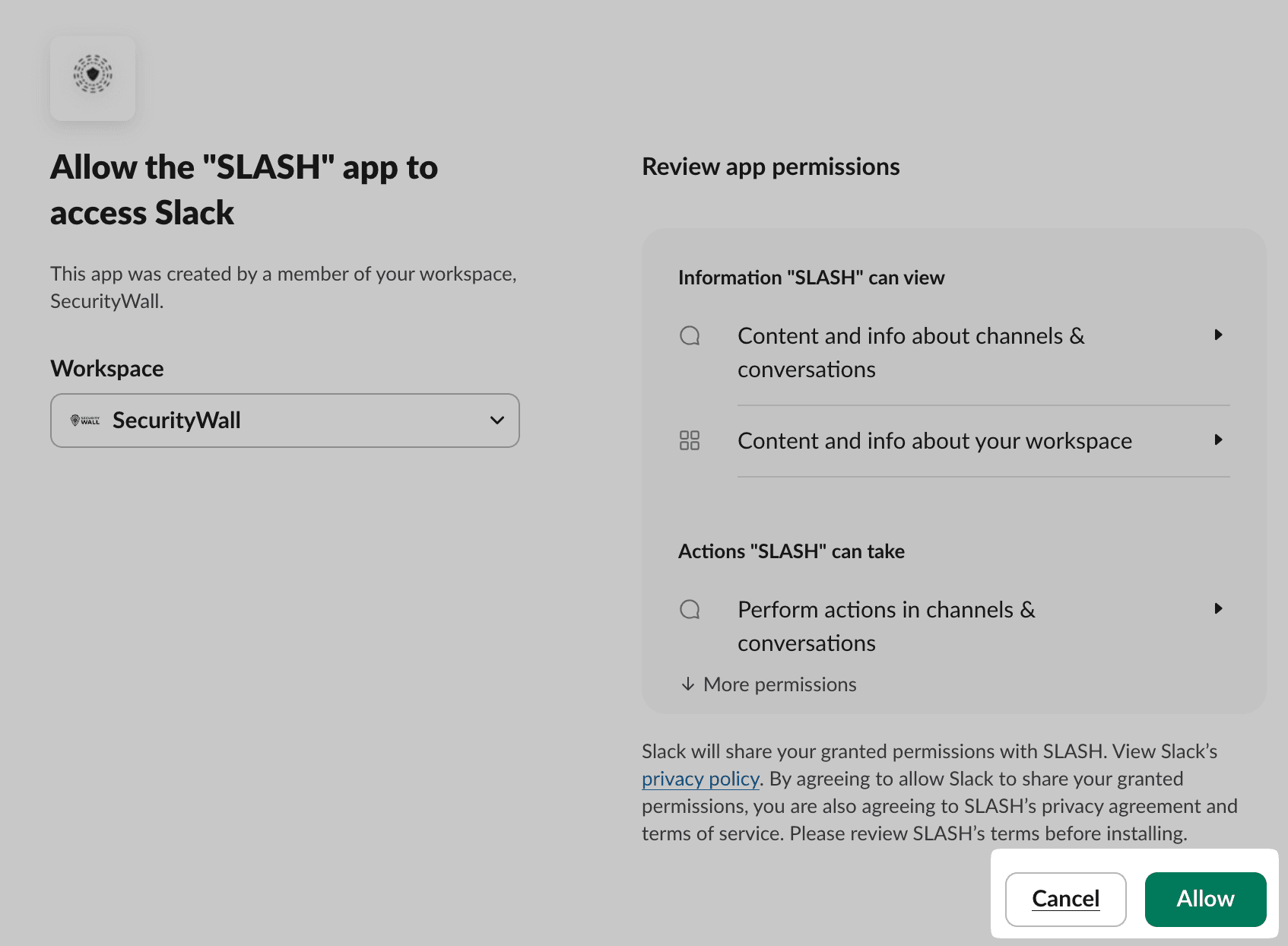
- You'll be redirected to Slack's authorization page to approve the connection
- After authorization, you'll be redirected back to SLASH to complete the configuration
What is SLASH for Slack?
SLASH is a penetration testing and vulnerability management platform that integrates with Slack to provide real-time security notifications directly in your team's communication channels. The integration enables your security and development teams to stay informed about critical security findings, pentest progress, and vulnerability status changes without leaving Slack.
How SLASH Works in Slack
Once connected, SLASH sends automated notifications to your configured Slack channels when specific events occur in your penetration testing workflow. The integration provides bidirectional communication—you can both receive notifications FROM SLASH and perform actions ON vulnerabilities directly FROM Slack, including replying to notifications in threads to add comments.
Which Parts of SLASH Trigger Messages in Slack?
SLASH sends notifications to Slack when these events occur in your pentest projects:
- Vulnerability Submitted: When a new vulnerability is discovered and added to a pentest
- Vulnerability Status Changed: When a vulnerability's status is updated (e.g., from "New" to "In Progress" to "Resolved")
- Comment Added: When someone adds a comment to a vulnerability in SLASH
- Pentest Status Changed: When the overall pentest project status changes (e.g., "In Progress" to "Completed")
- Report Published: When a final pentest report is published and ready for review
What Actions Can You Perform from Slack?
Each vulnerability notification in Slack includes interactive buttons that allow you to:
- Change Status: Update a vulnerability's status directly from Slack using a dropdown menu (e.g., "New" → "Triaged" → "Resolved")
- Add Comment: Click the "💬 Comment" button to open a modal where you can add a public comment to the vulnerability
- Add Internal Comment: Click the "🔒 Internal" button to add an internal comment visible only to your organization and pentesters
- Reply in Thread: Reply directly to a vulnerability notification in a Slack thread, your reply will be added as a comment to the vulnerability in SLASH
- View Details: Click "View Details" to open the full vulnerability page in SLASH
Note: To perform actions from Slack, your Slack email address must match your SLASH platform account email, and you must be a member of the client organization associated with the pentest.
Privacy Policy: For detailed information about how SLASH collects, manages, and stores data when using the integration for Slack, please review our Privacy Policy, specifically the "Third-Party Integrations" section.
Step-by-Step Setup
Navigate to Integrations
Log in to your SLASH account and click on 'Integrations' in the left sidebar navigation panel.
You'll see the Integrations page with available integration options including Slack, Jira, and ClickUp.
Loading screenshot...
Connect to Slack
Click the 'Connect to Slack' button on the integration for Slack card.
This will initiate the OAuth flow to connect your Slack workspace with SLASH.

Loading screenshot...
Authorize SLASH App
You'll be redirected to Slack's authorization page. Review the permissions and click 'Allow' to authorize the SLASH app.
The app requires permissions to view channel information, send messages, join public channels automatically, view message history for thread replies, and access user email addresses to match Slack users to SLASH accounts.
Loading screenshot...
Configuration Page
After authorization, you'll be automatically redirected back to SLASH and the integration for Slack Setup page will open.
This is where you'll configure your notification settings and link pentests to specific Slack channels.

Loading screenshot...
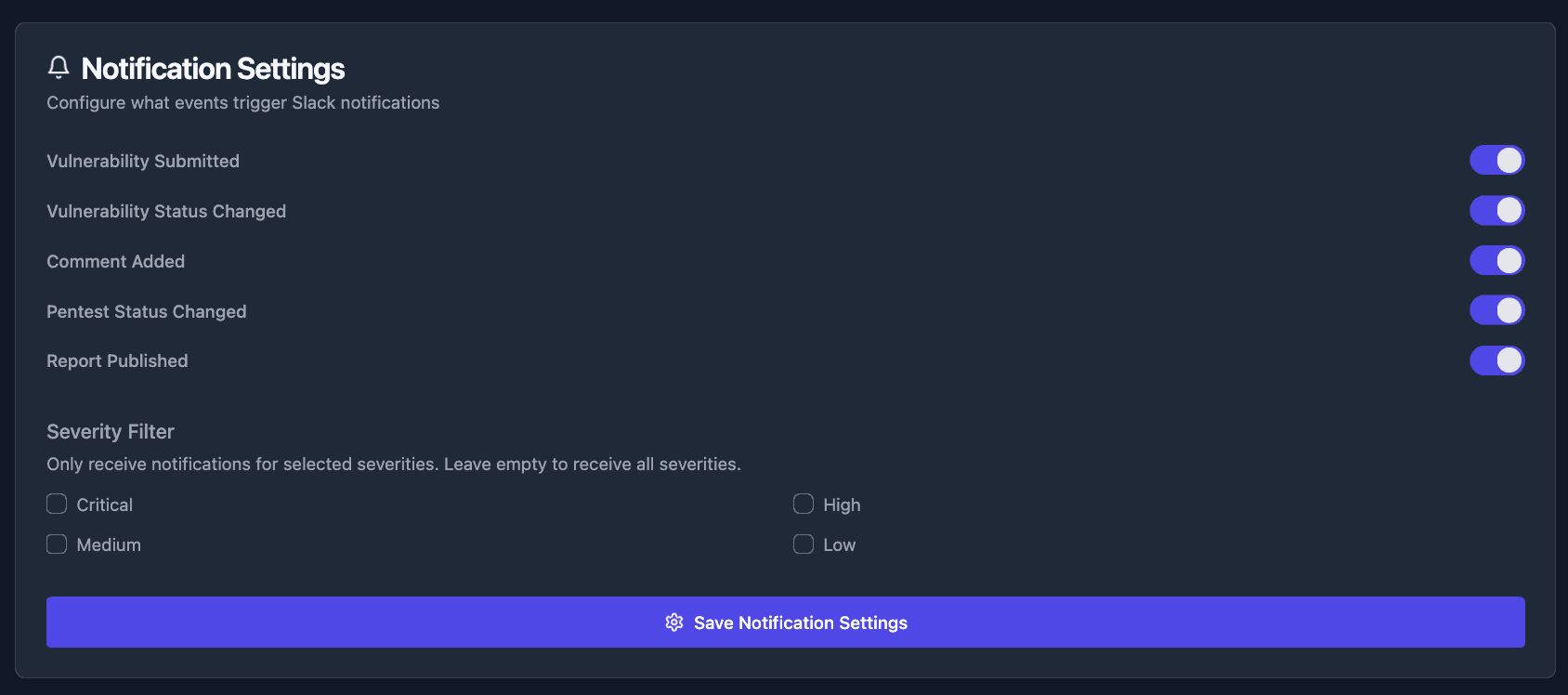
Configure Notification Settings
In the Notification Settings section, toggle on/off the events you want to receive notifications for.
Available events include: Vulnerability Submitted, Vulnerability Status Changed, Comment Added, Pentest Status Changed, and Report Published. You can also filter notifications by severity level (Critical, High, Medium, Low).
Loading screenshot...
Link Pentests to Channels
In the Available Pentests section, click 'Link to Channel' for each pentest you want to connect to a Slack channel.
You can link different pentests to different channels, allowing you to organize notifications by project or team. For public channels, the bot will automatically join. For private channels, you'll see a warning with instructions to manually invite the bot using /invite @SLASH in the channel.

Loading screenshot...
Configuration Options
Notification Settings
Configure what events trigger Slack notifications:
- Vulnerability Submitted
- Vulnerability Status Changed
- Comment Added
- Pentest Status Changed
- Report Published
Severity Filter: You can choose to receive notifications only for selected severities (Critical, High, Medium, Low). Leave all unchecked to receive notifications for all severities.
Linked Pentests
Link pentests to Slack channels to receive notifications:
- Each pentest can be linked to a specific Slack channel
- Different pentests can use different channels
- Link multiple pentests to the same channel if needed
- Public Channels: The bot will automatically join when you configure the channel
- Private Channels: You must manually invite the bot using
/invite @SLASHin the channel before configuring
Note: The bot must be a member of a channel to receive thread reply events. If you see a warning when configuring a private channel, follow the instructions to invite the bot manually.
Public vs Private Channels
Public Channels
When you configure a public channel, the SLASH bot will automatically join the channel. No manual action is required.
- Bot automatically joins when channel is configured
- Thread replies work immediately
- Notifications are sent automatically
Private Channels
For private channels, you must manually invite the bot before configuring it. This is a Slack security requirement, bots cannot automatically join private channels.
How to invite the bot to a private channel:
- Open the private channel in Slack
- Type
/invite @SLASHin the channel - Or go to channel settings → Integrations → Add apps → Search for "SLASH"
- Then configure the channel in SLASH
- You'll see a warning if you try to configure a private channel the bot isn't in
- Thread replies and notifications won't work until the bot is invited
Interactive Features
Each vulnerability notification in Slack includes interactive buttons that allow you to manage vulnerabilities without leaving Slack:
Status Management
- Change vulnerability status using the dropdown menu
- Available statuses: New, Triaged, Ready For Retest, Resolved, Not Applicable
Comment Management
- Add public or internal comments via modal dialogs
- Reply to notifications in threads to add comments (thread replies are automatically added as comments in SLASH)
Requirements: To use interactive features, your Slack email must match your SLASH account email, and you must be a member of the client organization.
Thread Replies: When you reply to a vulnerability notification in a Slack thread, your reply is automatically added as a comment to the vulnerability in SLASH. Thread replies from Slack do not generate duplicate notifications, only comments added from the SLASH platform will appear as new notifications in Slack.
Permissions Required
The SLASH app requires the following permissions to function properly:
Information "SLASH" can view:
- View basic information about public channels in your workspace
- View messages and other content in public channels that "SLASH" has been added to (for thread replies)
- View basic information about private channels that "SLASH" has been added to
- View people in your workspace
- View email addresses of people in your workspace (to match Slack users to SLASH accounts)
Actions "SLASH" can take:
- Send messages as @SLASH
- Send messages to channels @SLASH isn't a member of
- Start direct messages with people (for confirmation messages)
- Automatically join public channels when configured (to enable thread replies and notifications)